 WiseBoard
Give the room a shared signal
Use the adjustable visual meter to help students self-monitor classroom noise.
Classroom environment
Classroom Management brings together a microphone-based Noise Meter and a Restorative Outcomes view. Use the meter as a relative room signal, and review recorded outcomes as context for your own classroom judgment, not as a diagnosis or proof.
See the workspace before you sign in.
01 / THE DIFFERENCE
Practical tools that leave the decisions with you.
Use the adjustable visual meter to help students self-monitor classroom noise.
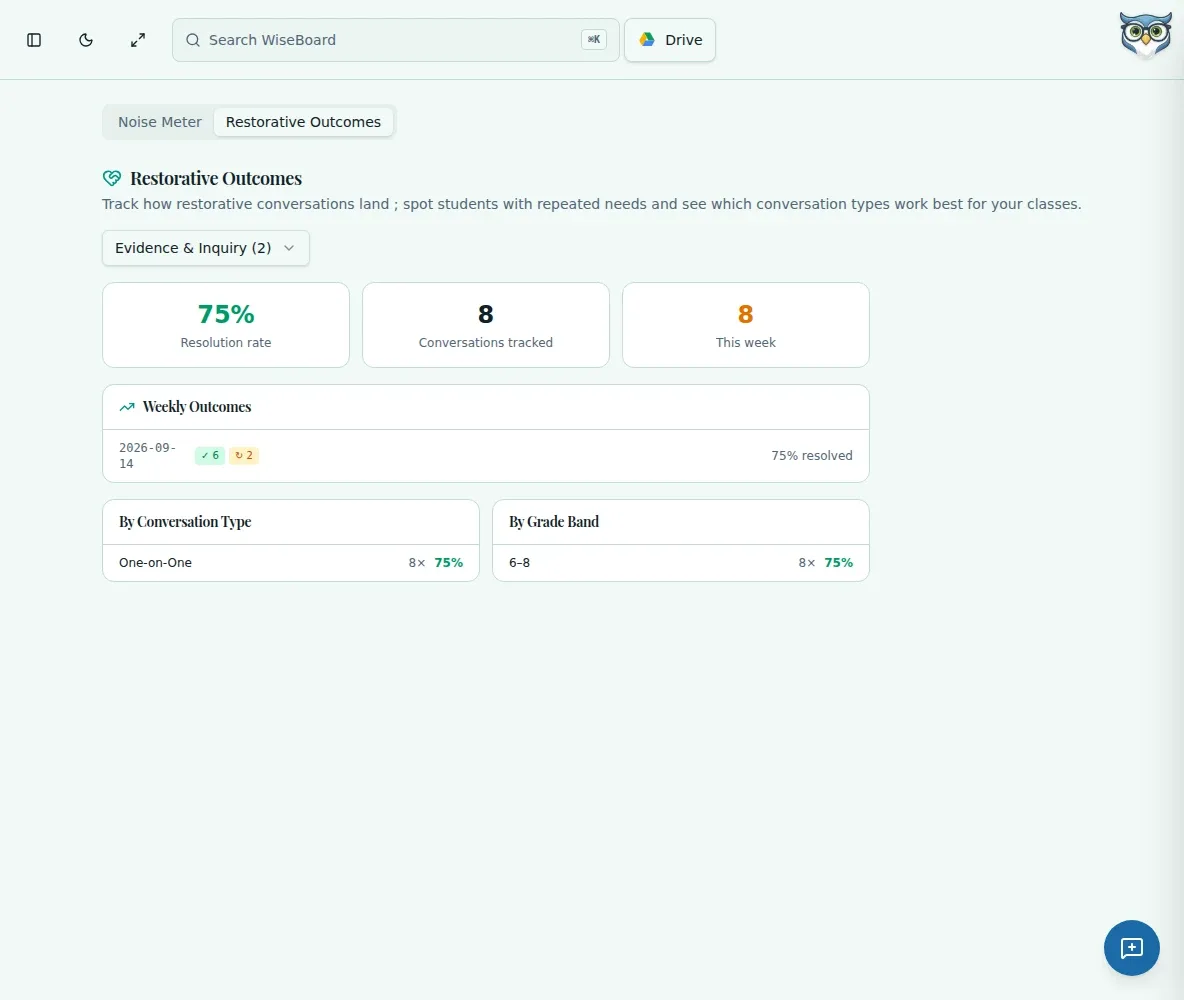
When outcome data is available, inspect summaries by week, conversation type and grade band.
Repeated-needs flags prompt review; they do not explain a cause or establish that an intervention worked.
02 / IN PRACTICE
A closer look at how this fits into your day.
Explore the interactive app demoOpen Classroom Management, choose Start Monitoring and allow microphone access.
Review the current signal and peak, adjust sensitivity or thresholds for your room, and stop monitoring when finished.
Choose Restorative Outcomes, select a class and read available summaries alongside your own classroom context.
WHAT THIS COULD LOOK LIKE
Start the meter and explain the room signal you want students to work toward. Adjust the thresholds for your space, then stop monitoring when the activity ends. Treat it as a relative microphone signal, not a calibrated sound measurement.
GOOD TO KNOW
A little more detail before you dive in.
No. It is a relative microphone signal, not a calibrated decibel reading or an individual student's behavior score.
No. It means there are no recorded outcomes for the view to summarize.
YOUR WORKSPACE AWAITS
Explore WiseBoard on your own terms. Take a look around, or start your free trial.