 WiseBoard
See what is connected
Follow existing subject-to-unit-to-lesson relationships in an interactive graph.
See curriculum connections
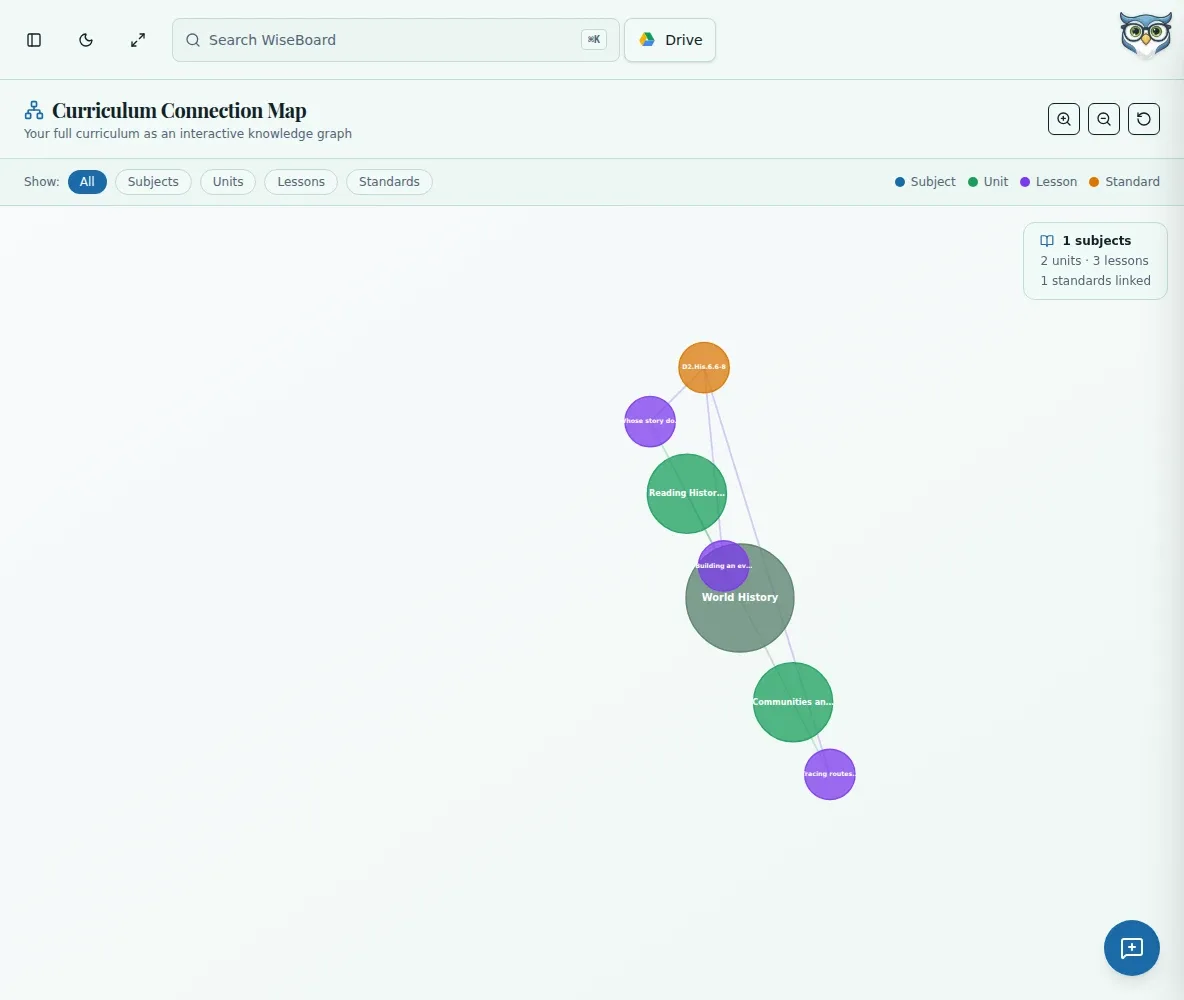
A curriculum map is most useful when it reflects what you have already built. WiseBoard's interactive graph lays out existing subject, unit, lesson and linked-standard relationships so you can inspect the structure and open a lesson from its node.
See the workspace before you sign in.
01 / THE DIFFERENCE
Practical tools that leave the decisions with you.
Follow existing subject-to-unit-to-lesson relationships in an interactive graph.
See standards linked to lessons when that data is present.
Select a lesson node to open the lesson behind that part of your curriculum.
02 / IN PRACTICE
A closer look at how this fits into your day.
Explore the interactive app demoGo to Curriculum Map and open Curriculum Connection Map.
Use the Show controls to focus on subjects, units, lessons or standards.
Drag the canvas, use zoom controls and select a lesson node when you want to open it.
WHAT THIS COULD LOOK LIKE
Focus the graph on a subject, its units and lessons, then show standards to see which lessons have linked standards. Open a lesson node to inspect the material behind the map.
GOOD TO KNOW
A little more detail before you dive in.
The graph reflects existing account data. Add subjects, units and lessons through their class and lesson workflows first.
The map visualizes existing relationships and opens lesson nodes. Build subjects, units and lessons through the relevant class and lesson workflows.
YOUR WORKSPACE AWAITS
Explore WiseBoard on your own terms. Take a look around, or start your free trial.