 WiseBoard
Keep viewing connected to the lesson
Find the Clips tab or Video Clips panel for a concept in the lesson.
Lesson planning
A focused clip can give a concept a second explanation without taking over the period. Browse available lesson-linked clips, check the source and timestamps, and preview the external player before class.
See the workspace before you sign in.
01 / THE DIFFERENCE
Practical tools that leave the decisions with you.
Find the Clips tab or Video Clips panel for a concept in the lesson.
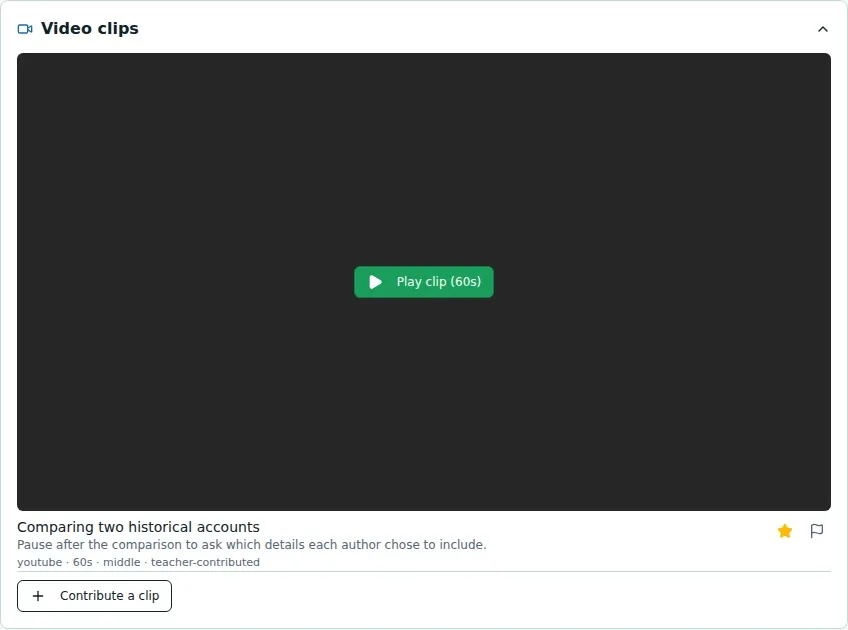
Review the source, duration and description, then preview the requested start and end times.
Favorite useful clips, report an inappropriate one or contribute a clip with its source and timestamps.
02 / IN PRACTICE
A closer look at how this fits into your day.
Explore the interactive app demoOpen a lesson and locate the relevant concept block.
Open the Clips tab or panel and inspect the thumbnail, source, duration and description.
Favorite, report or contribute a clip, and always check the external player before class.
WHAT THIS COULD LOOK LIKE
Open the relevant lesson concept, inspect the clip's source and requested segment, then preview it to confirm the clip begins and ends where expected. Use the short segment to anchor a pause-and-predict discussion rather than playing an unchecked link.
GOOD TO KNOW
A little more detail before you dive in.
The panel offers available lesson-linked clips and contribution controls; it does not provide a topic-search or Settings control.
Yes. Preview the external-player content and timestamp boundaries before classroom use.
YOUR WORKSPACE AWAITS
Explore WiseBoard on your own terms. Take a look around, or start your free trial.