 WiseBoard
Keep the class in view
Choose the relevant class or communication section before you prepare anything for families.
Family communication
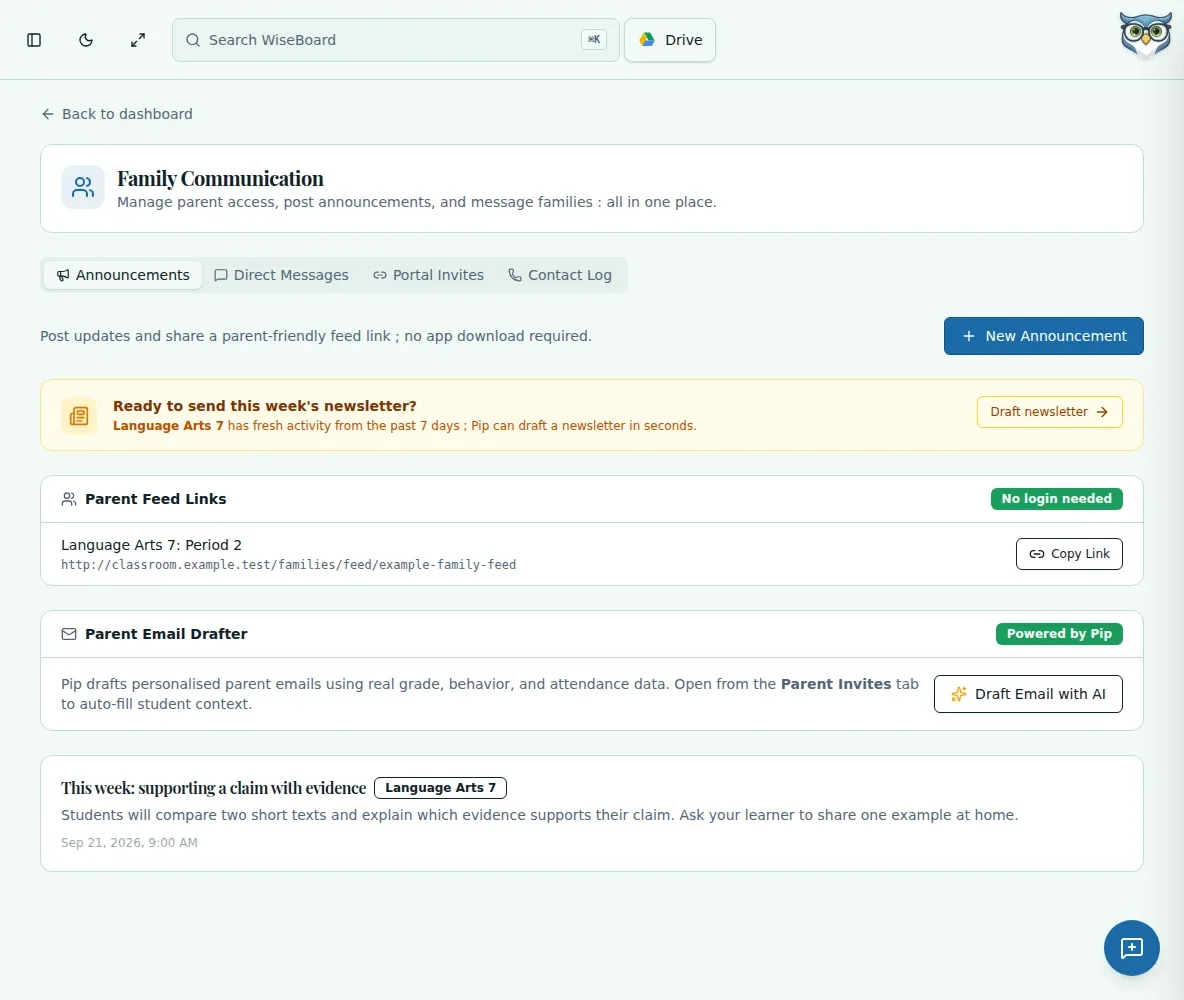
Family communication asks for care as much as speed. Families gives you a teacher-facing place to review the class context and available sharing tools before you choose what to send.
See the workspace before you sign in.
01 / THE DIFFERENCE
Practical tools that leave the decisions with you.
Choose the relevant class or communication section before you prepare anything for families.
Check the visible details and recipient context before using a save, share or copy action.
Check the resulting page status instead of assuming a link was emailed or a family received access.
02 / IN PRACTICE
A closer look at how this fits into your day.
Explore the interactive app demoOpen Families and select the class or communication area that fits your task.
Review the sharing fields and make sure the content and intended audience are right.
Save, share or copy when ready, then verify the status displayed on the page.
WHAT THIS COULD LOOK LIKE
Before sharing an update about an upcoming classroom activity, open the relevant class, check the message and the family audience, then use the available sharing control. Confirm the page's status and send through your approved channel if the tool provides a link to copy.
GOOD TO KNOW
A little more detail before you dive in.
No. Opening the workspace does not send anything. Use an available teacher action only after reviewing the class and recipient details.
No. A copy action does not email or deliver the link. Share it through your approved channel and confirm access separately.
YOUR WORKSPACE AWAITS
Explore WiseBoard on your own terms. Take a look around, or start your free trial.