 WiseBoard
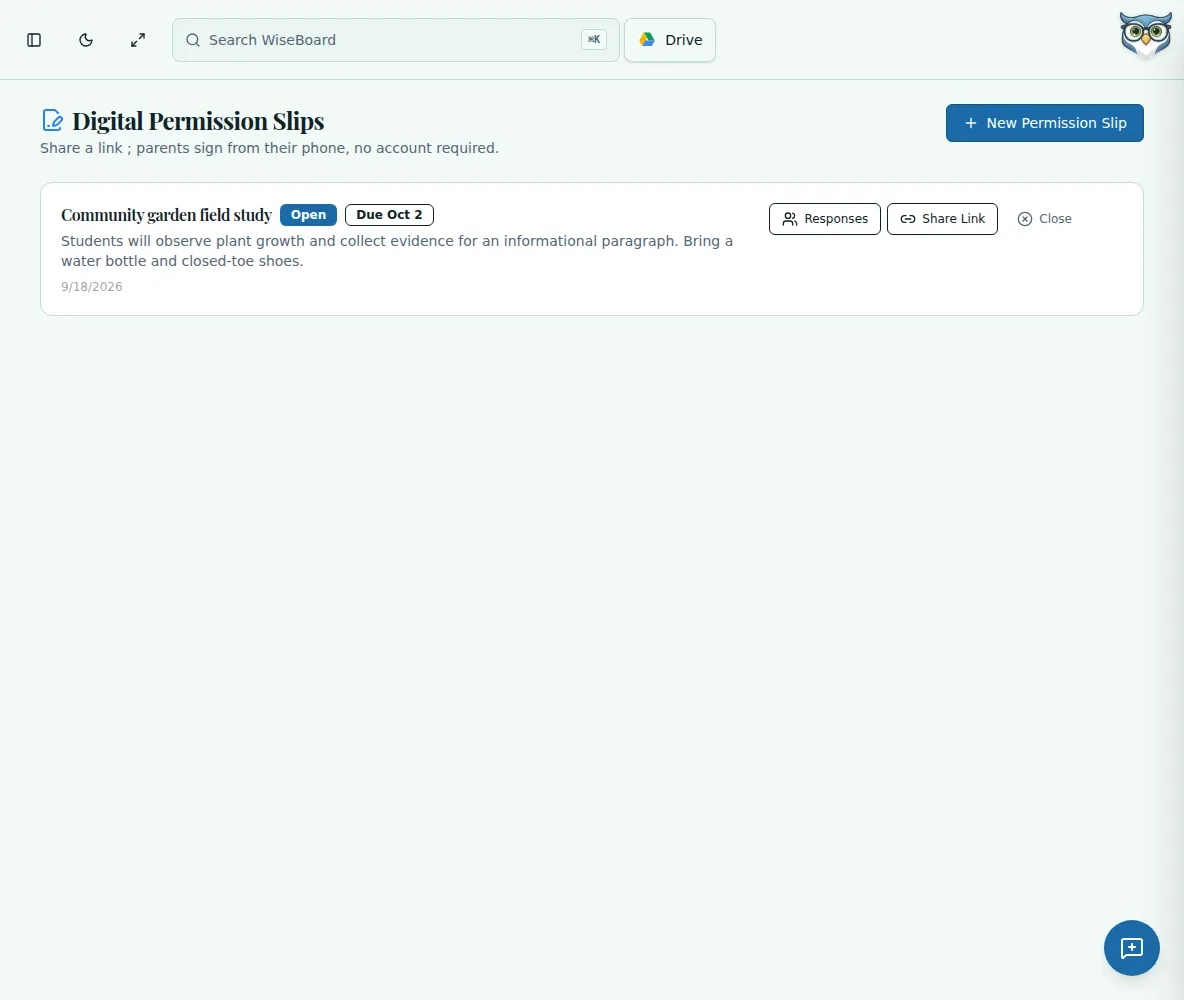
Review the slip before sharing
Check the class, event and permission wording before you copy the parent link.
Family communication
When a class event needs family permission, start with the event details and the language families will see. WiseBoard keeps the slip record and its displayed responses together for teacher review.
See the workspace before you sign in.
01 / THE DIFFERENCE
Practical tools that leave the decisions with you.
Check the class, event and permission wording before you copy the parent link.
Copy the link and share it through the channel approved by your school.
Return to the response list to review what families submitted.
02 / IN PRACTICE
A closer look at how this fits into your day.
Explore the interactive app demoUse the create control and complete the event information requested on the page.
Review the class and permission language, copy the parent link, then distribute it yourself.
Check the displayed response list as families submit the name and signature fields.
03 / A CLOSER LOOK
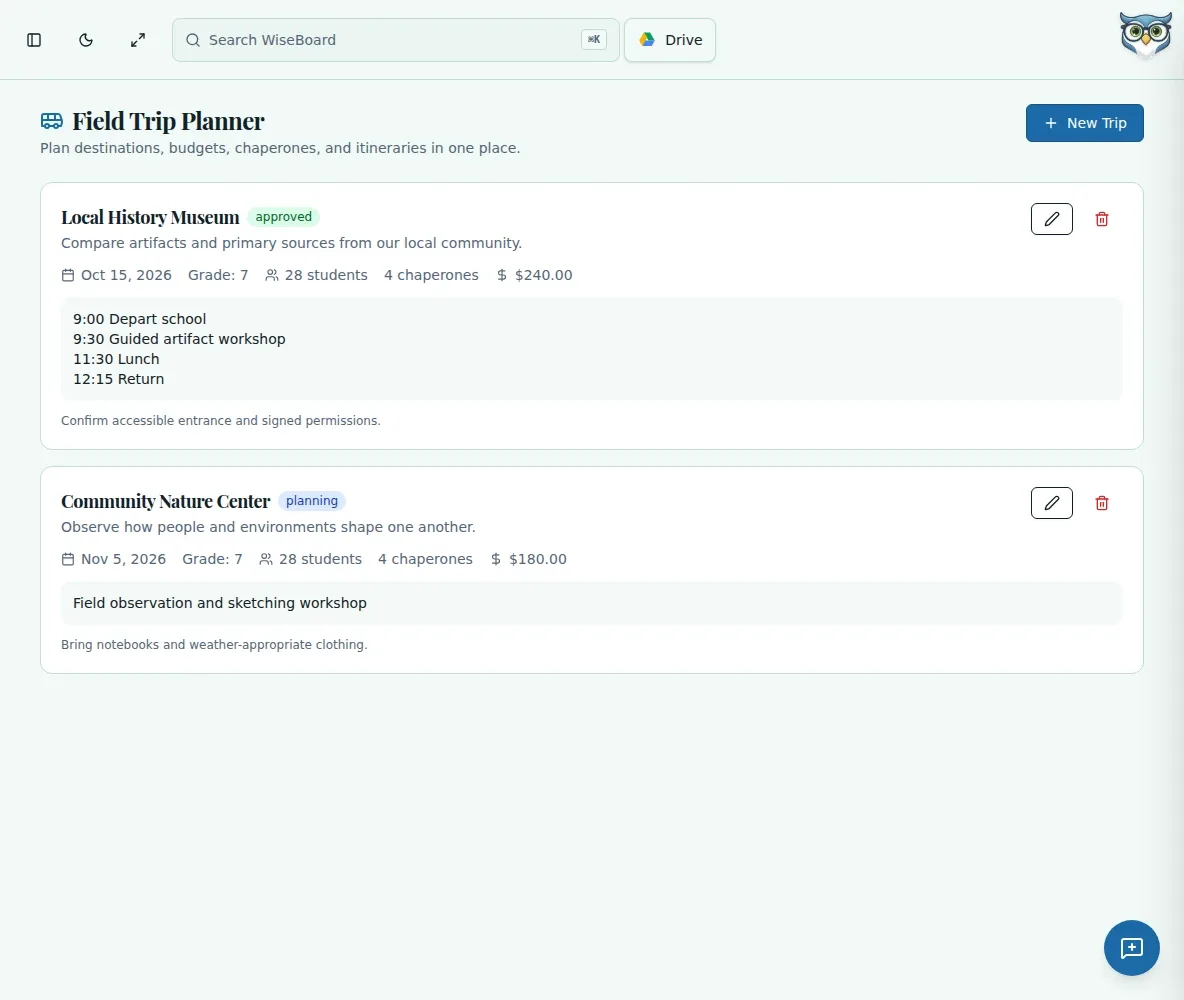
Related workflow view. This is not another screen of the primary feature.
WHAT THIS COULD LOOK LIKE
Enter the visit details and class, read the permission language as a family would, and copy the parent link. Share it through your school's normal channel, then revisit the page to review submitted responses before the trip.
GOOD TO KNOW
A little more detail before you dive in.
No. Copy the parent link and share it yourself through an approved channel. The page does not promise automatic email delivery or reminders.
The page collects the displayed name and signature fields. Do not treat that as a legal-signature assurance; follow your school's requirements.
YOUR WORKSPACE AWAITS
Explore WiseBoard on your own terms. Take a look around, or start your free trial.