 WiseBoard
Get past the blank page
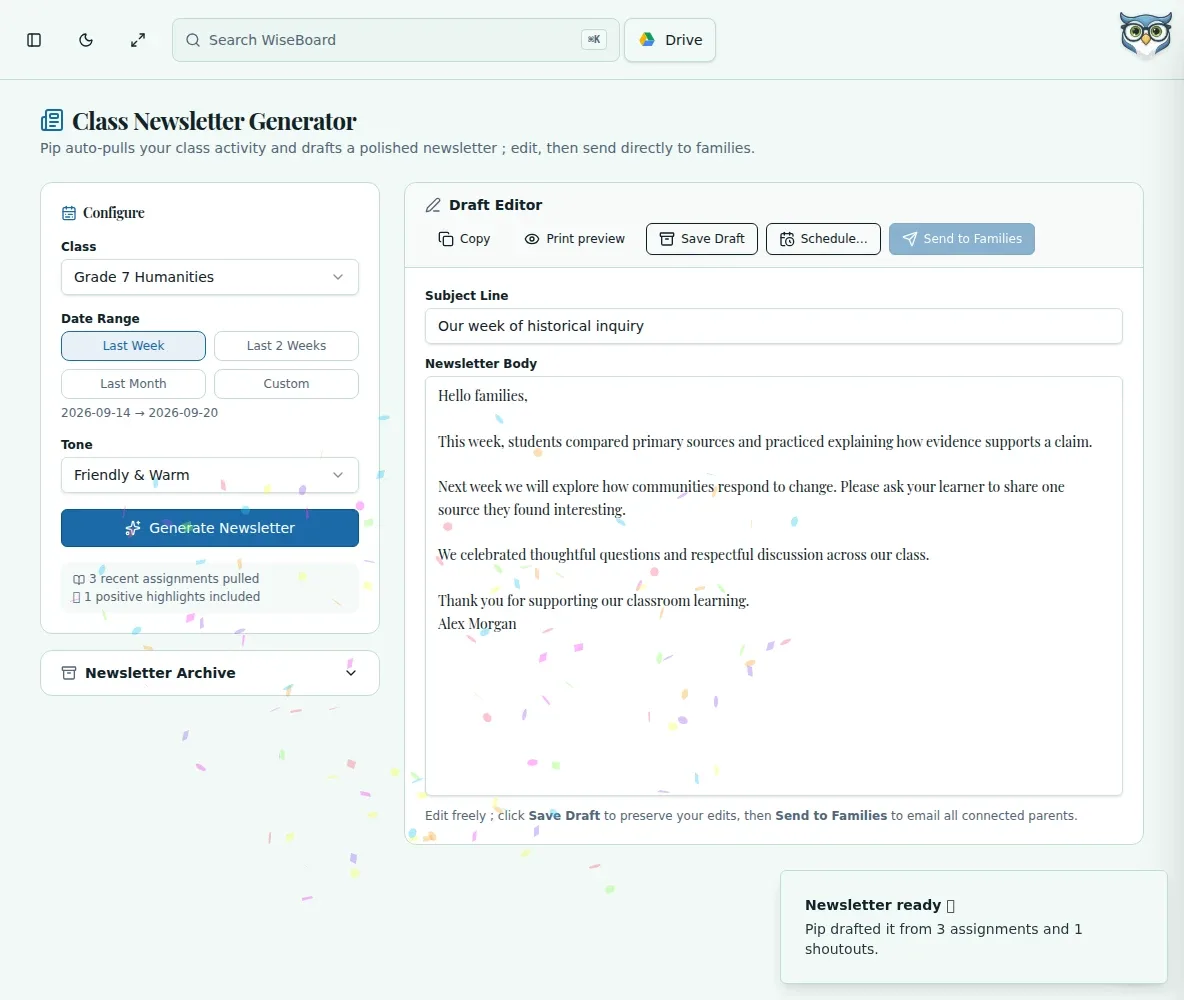
Use selected class activity and positive highlights as a starting point for a newsletter draft.
Family communication
A family newsletter should sound like your classroom, not a data feed. Choose a class and date range to draft from available activity, then check every detail before deciding whether to send or schedule.
See the workspace before you sign in.
01 / THE DIFFERENCE
Practical tools that leave the decisions with you.
Use selected class activity and positive highlights as a starting point for a newsletter draft.
Review names, dates, claims and student privacy in both the subject line and body.
Save first, then use Send to Families or Schedule only when you choose.
02 / IN PRACTICE
A closer look at how this fits into your day.
Explore the interactive app demoSelect the class and dates, choose a tone, and generate a newsletter draft.
Check the included activity and edit the subject and body, then save the draft.
Confirm the connected-parent audience before sending or scheduling, then check the resulting status and archive.
WHAT THIS COULD LOOK LIKE
Choose the dates of a class investigation, generate a draft and check that the activity summary matches what students actually did. Remove individual student details, add what the class will explore next, then save and confirm the parent audience before sending.
GOOD TO KNOW
A little more detail before you dive in.
No. Generation and saving are separate from Send to Families and Schedule. Use an explicit delivery action after reviewing the draft.
Family sending depends on connected parents for the selected class. Check the class and intended audience, then review the resulting sent status.
YOUR WORKSPACE AWAITS
Explore WiseBoard on your own terms. Take a look around, or start your free trial.