 WiseBoard
Capture the real classroom moment
Write a short reflection after teaching while a timing snag or successful explanation is fresh.
Lesson planning
The most useful lesson note is often the one you write before the details fade. Save a reflection with a tag, then look for matching prior-year notes when lesson history and preferences make them available.
See the workspace before you sign in.
01 / THE DIFFERENCE
Practical tools that leave the decisions with you.
Write a short reflection after teaching while a timing snag or successful explanation is fresh.
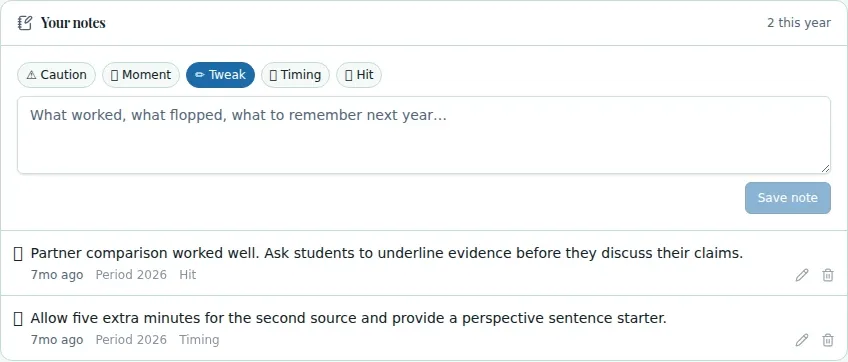
Choose Caution, Moment, Tweak, Timing or Hit for a quick reminder.
Matching notes can follow lesson content even if a lesson receives a new ID.
02 / IN PRACTICE
A closer look at how this fits into your day.
Explore the interactive app demoFind Your notes in the lesson's annotations section.
Enter the note, choose one of the available tags and save it.
Review matching prior-year notes when available; edit or delete your own notes with the displayed controls.
WHAT THIS COULD LOOK LIKE
After class, add a Timing note that the final example took longer than expected and record which part to shorten. When the lesson returns in a later year, check whether matching notes are available before deciding how to pace it.
GOOD TO KNOW
A little more detail before you dive in.
No. Matching notes may appear when lesson history and feature preferences allow.
The annotations panel does not provide a Share with Co-teachers button. Review any Shared with you section when it is present.
YOUR WORKSPACE AWAITS
Explore WiseBoard on your own terms. Take a look around, or start your free trial.