 WiseBoard
Begin with your lesson
Use the topic and class context you already have, rather than starting from a blank document.
Planning tools
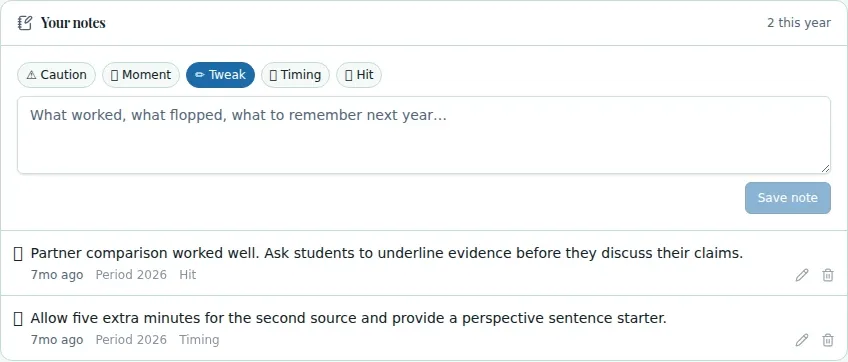
Planning tomorrow's lesson? Start with your topic and class context in the WiseBoard lesson workspace. Use an AI draft as a starting point, then check the activities and pacing before you save or teach.
See the workspace before you sign in.
01 / THE DIFFERENCE
Practical tools that leave the decisions with you.
Use the topic and class context you already have, rather than starting from a blank document.
Review and edit generated sections so the plan reflects your objectives, time and students.
Save the lesson within your teaching workflow instead of leaving the draft in a separate chat.
02 / IN PRACTICE
A closer look at how this fits into your day.
Explore the interactive app demoOpen a lesson and give the planning assistant the topic and classroom context.
Read through the proposed sections and change what does not fit.
Save your changes in the lesson workspace and return to the plan as you prepare.
03 / A CLOSER LOOK
Another view of this feature's workspace.
WHAT THIS COULD LOOK LIKE
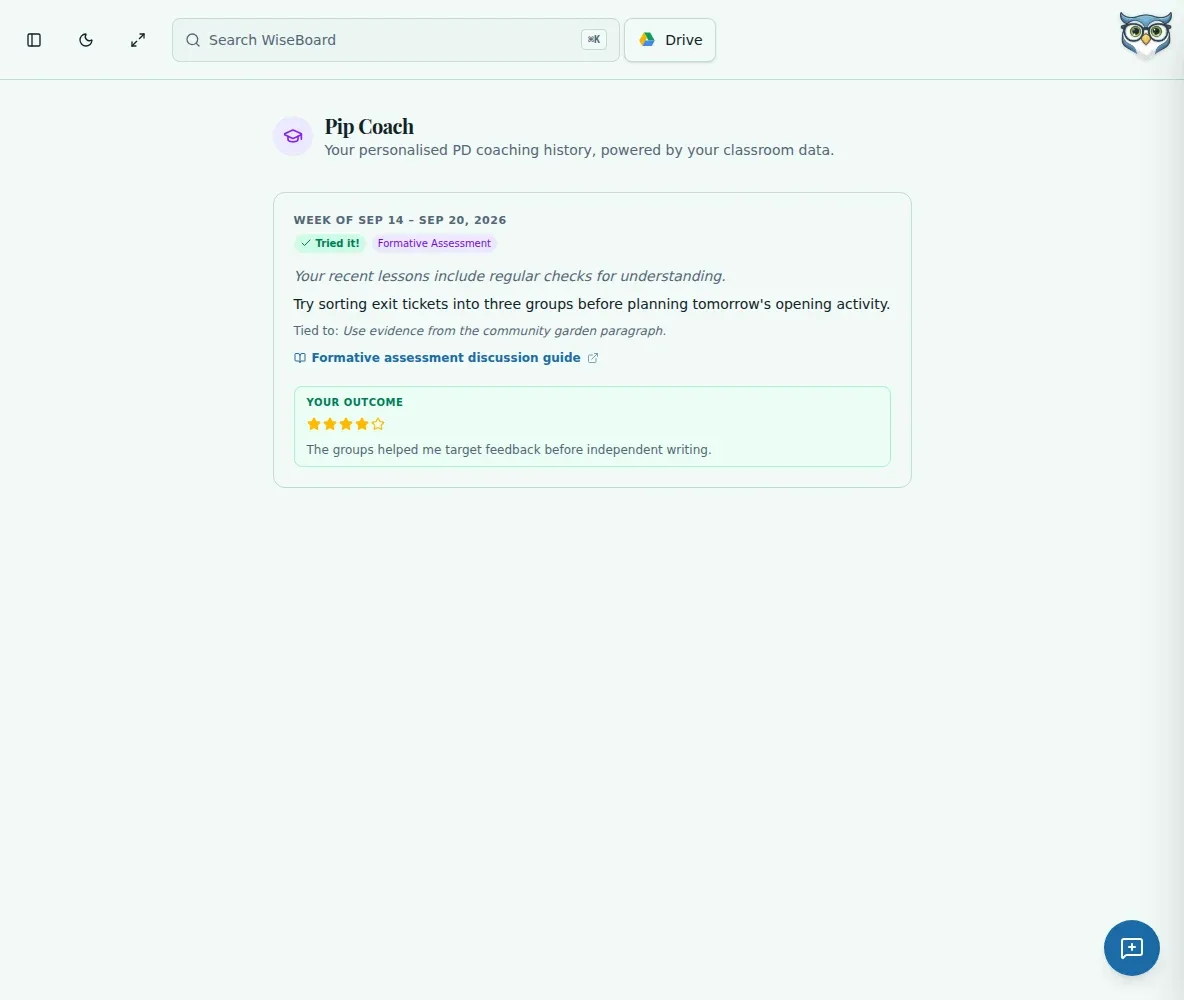
Start with the source and the question students should investigate. Review the draft sequence, replace questions that assume knowledge they do not yet have, and adjust the time for reading and discussion before saving.
GOOD TO KNOW
A little more detail before you dive in.
No. Generated lesson content is a draft for the teacher to check, edit and save.
Planning lives in the WiseBoard lesson workflow, alongside your class and lesson context.
Yes. Treat the plan as an editable draft. Check the objective, timing and activities against what your class needs.
YOUR WORKSPACE AWAITS
Explore WiseBoard on your own terms. Take a look around, or start your free trial.