 WiseBoard
Look up, not down at notes
Keep the current and next lesson moves visible while you lead instruction.
Live classroom tools
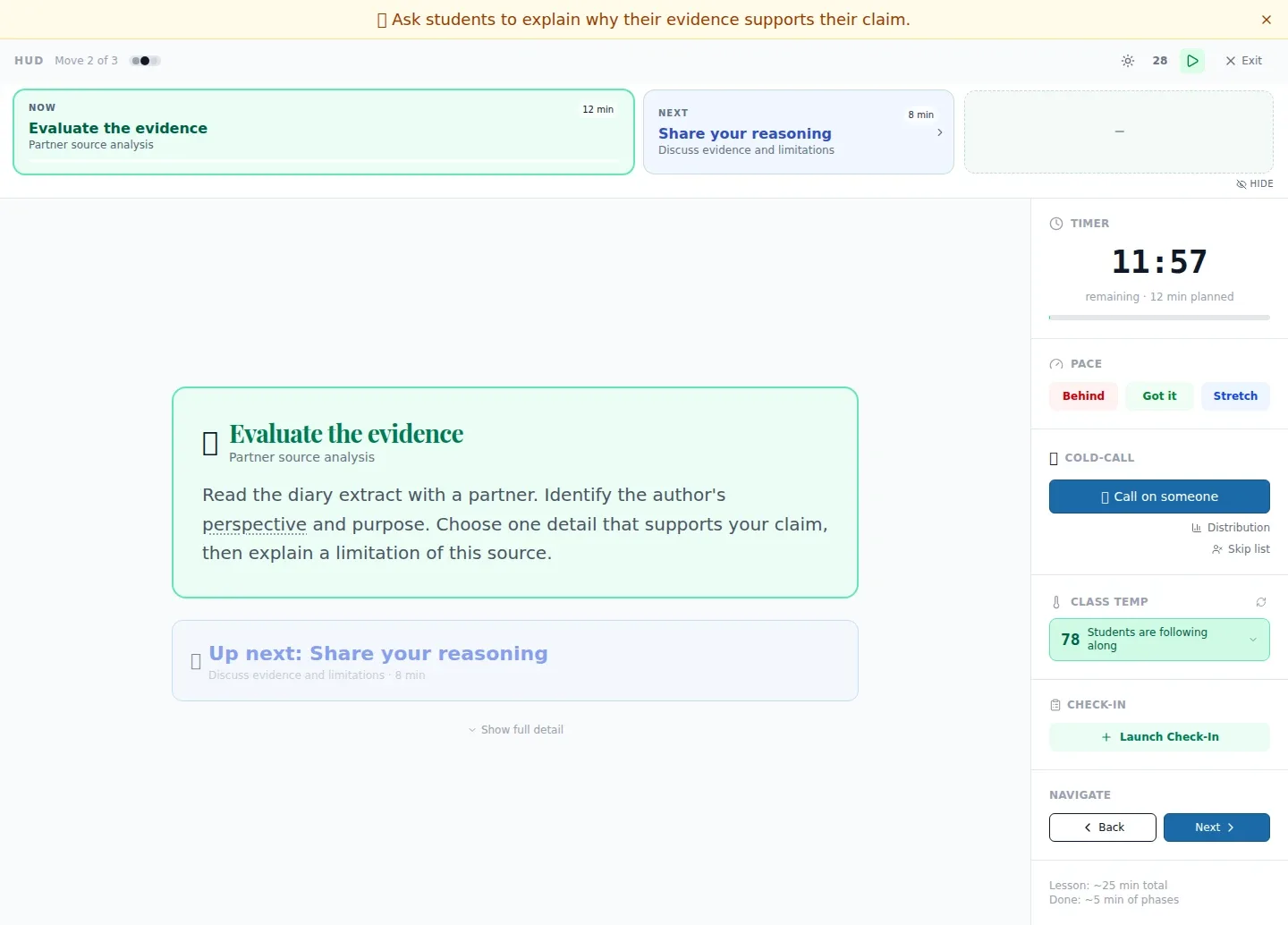
Project the teacher-only Live Teach HUD beside your class and keep the current lesson move, what comes next, and elapsed timing in view. Use its pace controls when the room needs a different rhythm, then record the delivery outcome separately in Live Teach.
See the workspace before you sign in.
01 / THE DIFFERENCE
Practical tools that leave the decisions with you.
Keep the current and next lesson moves visible while you lead instruction.
Behind compresses remaining lesson time, Got it skips re-explanation, and Stretch inserts an extension.
Use available theme and display controls to make the teacher HUD easier to read.
02 / IN PRACTICE
A closer look at how this fits into your day.
Explore the interactive app demoLaunch Live Teach with the intended lesson, then open HUD from the session controls.
Check the current and next move, elapsed timing, and available check-in or pacing controls.
Return to Live Teach and choose Complete, Partial, Skipped, or Reschedule to describe delivery.
03 / A CLOSER LOOK
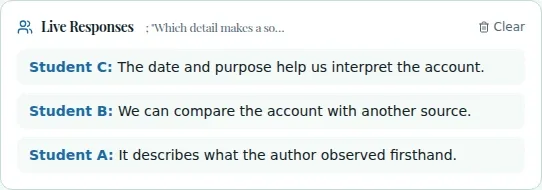
Related workflow view. This is not another screen of the primary feature.
WHAT THIS COULD LOOK LIKE
Project the HUD during a lesson discussion. If the class needs another example, use the available pacing control to adjust the planned flow, then continue teaching and record the session outcome that matches what happened.
GOOD TO KNOW
A little more detail before you dive in.
No. Behind, Got it, and Stretch change lesson pacing only. They do not record mastery.
The HUD is opened from session controls and requires appropriate lesson context.
YOUR WORKSPACE AWAITS
Explore WiseBoard on your own terms. Take a look around, or start your free trial.