 WiseBoard
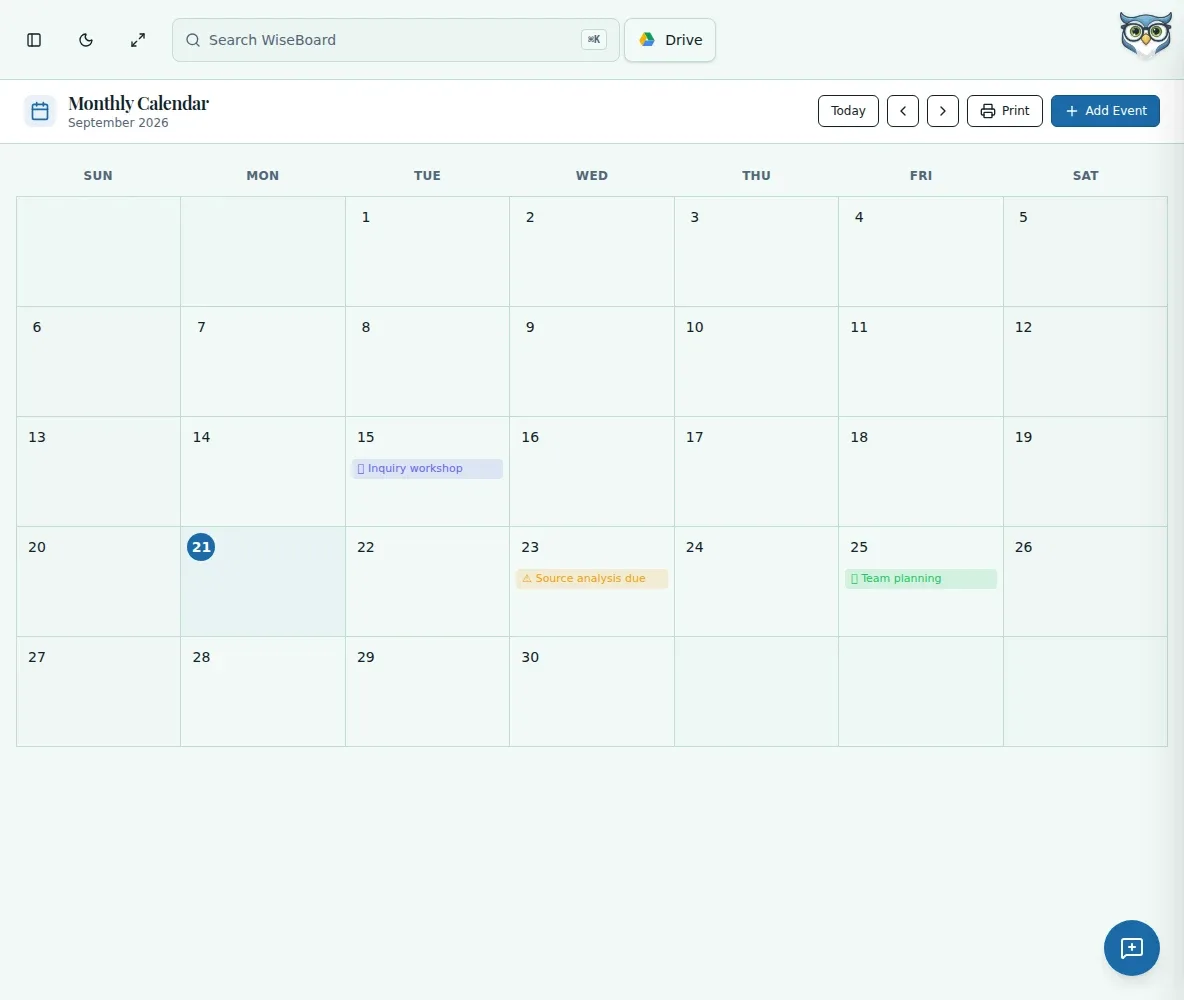
See the month at a glance
Review saved events on their dates and move between months with the navigation arrows.
Plan by month
A month view helps you notice how deadlines, lessons and school dates sit alongside each other. Add events when you want a date represented, move between months and keep notes or class details with the event where useful.
See the workspace before you sign in.
01 / THE DIFFERENCE
Practical tools that leave the decisions with you.
Review saved events on their dates and move between months with the navigation arrows.
Add lessons, deadlines, holidays or other events with an event type and optional details.
Calendar entries are for your planning; adding an event does not send it to families.
02 / IN PRACTICE
A closer look at how this fits into your day.
Explore the interactive app demoChoose Monthly Calendar from the calendar area.
Select Add Event or a date, then enter the event details.
Choose a type and any optional time, class or notes, then save. Open a saved event to review or edit it.
03 / A CLOSER LOOK
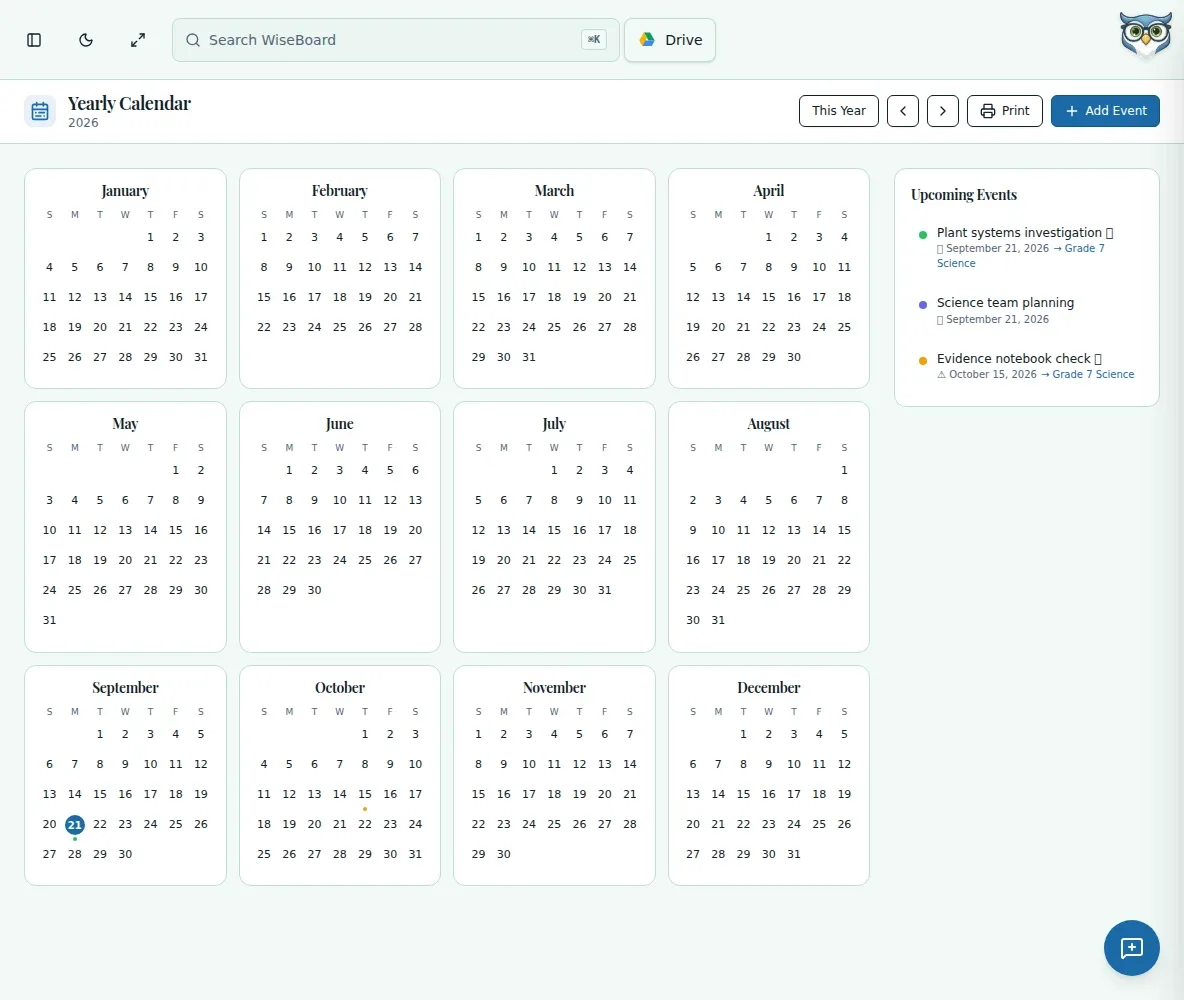
Related workflow view. This is not another screen of the primary feature.
WHAT THIS COULD LOOK LIKE
Add assessment dates and project deadlines as events, then scan the month for weeks where several demands land together. Adjust your own plan before the class reaches that stretch.
GOOD TO KNOW
A little more detail before you dive in.
No. Monthly Calendar keeps dates available for your planning; it does not send them to families.
Yes. The event form supports an optional class and notes, along with its type and optional time.
YOUR WORKSPACE AWAITS
Explore WiseBoard on your own terms. Take a look around, or start your free trial.