 WiseBoard
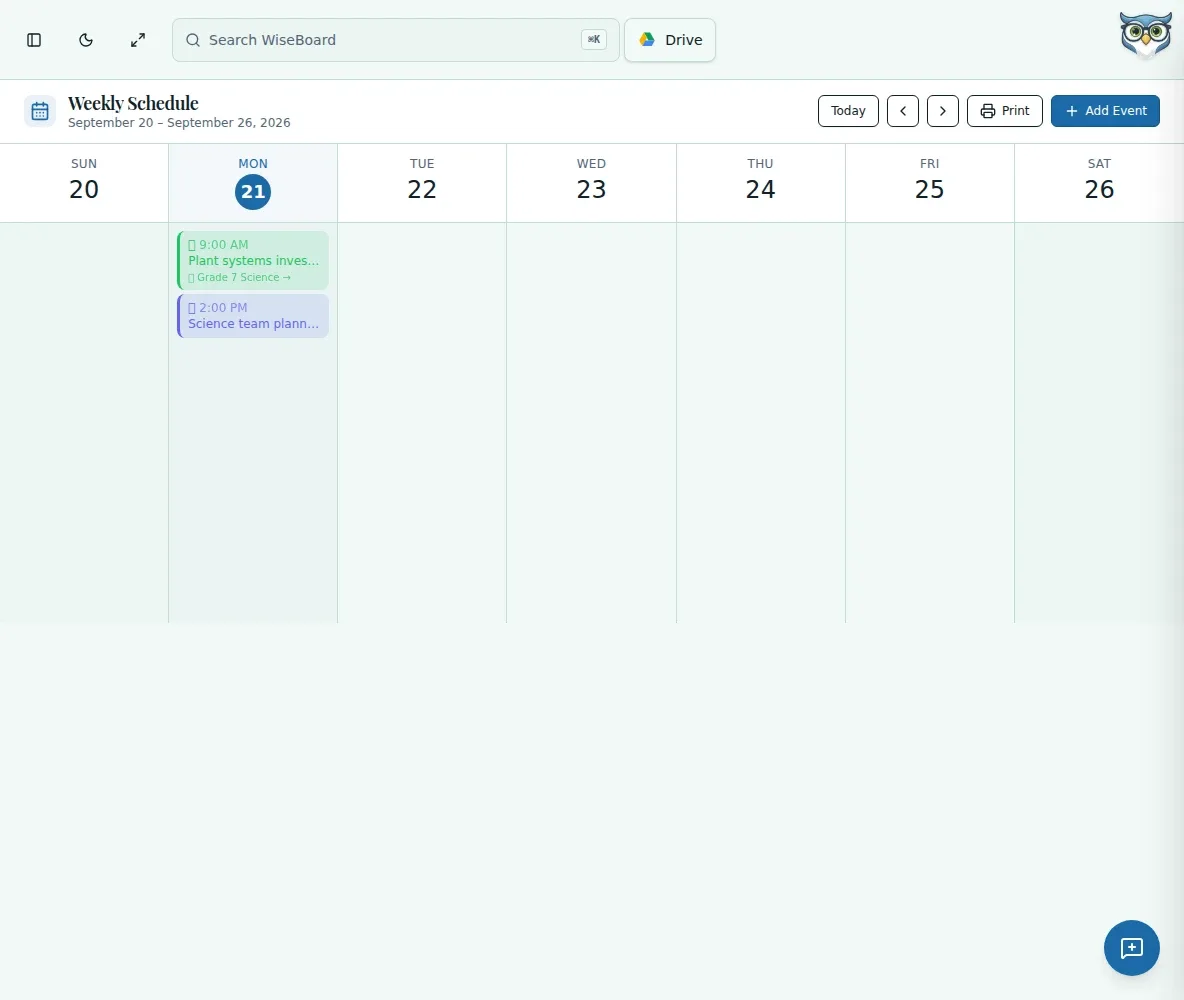
See one week at a time
Review saved calendar events in a week-at-a-glance layout.
Plan the week
Use Weekly Schedule for dated events that need a place in the week ahead. Move between Sunday-to-Saturday weeks, add an event on a day and connect it to an active class when the event belongs to that class.
See the workspace before you sign in.
01 / THE DIFFERENCE
Practical tools that leave the decisions with you.
Review saved calendar events in a week-at-a-glance layout.
Use previous, next and Today controls to reach the week you need.
Add, edit or remove calendar events and associate a class when it applies.
02 / IN PRACTICE
A closer look at how this fits into your day.
Explore the interactive app demoOpen Weekly Schedule and use the arrows or Today button.
Choose Add Event or select a day, then enter the event details.
Save it with a class only when it applies to one, or open an existing event to edit or delete it.
03 / A CLOSER LOOK
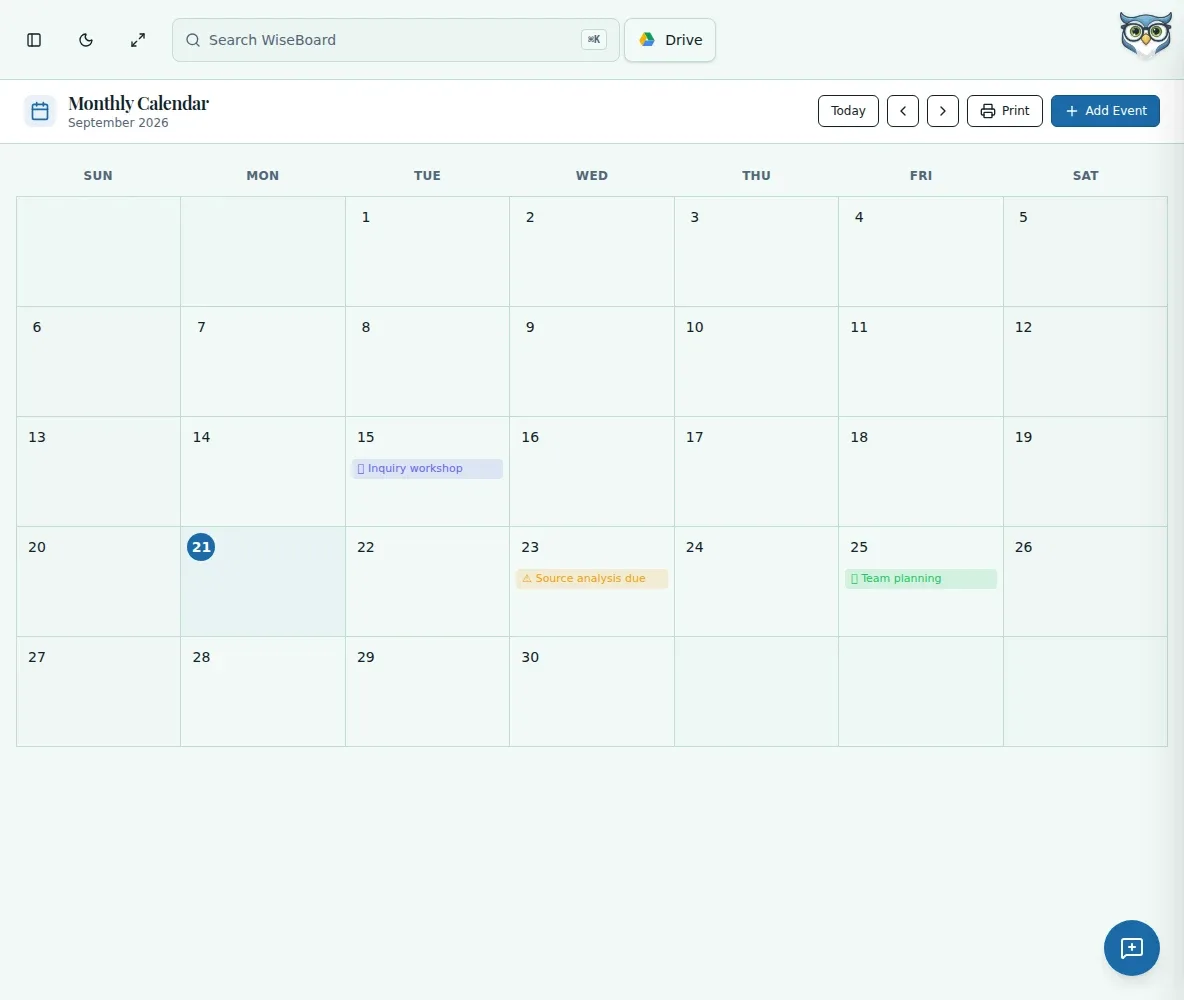
Related workflow view. This is not another screen of the primary feature.
WHAT THIS COULD LOOK LIKE
Add the project launch, work sessions and due date to their days. Associate a class only for events tied to a particular active class, then move to the following week when planning the next stage.
GOOD TO KNOW
A little more detail before you dive in.
Each view covers Sunday through Saturday.
Yes. Select an existing event to edit or delete it.
YOUR WORKSPACE AWAITS
Explore WiseBoard on your own terms. Take a look around, or start your free trial.