 WiseBoard
Plan around real school days
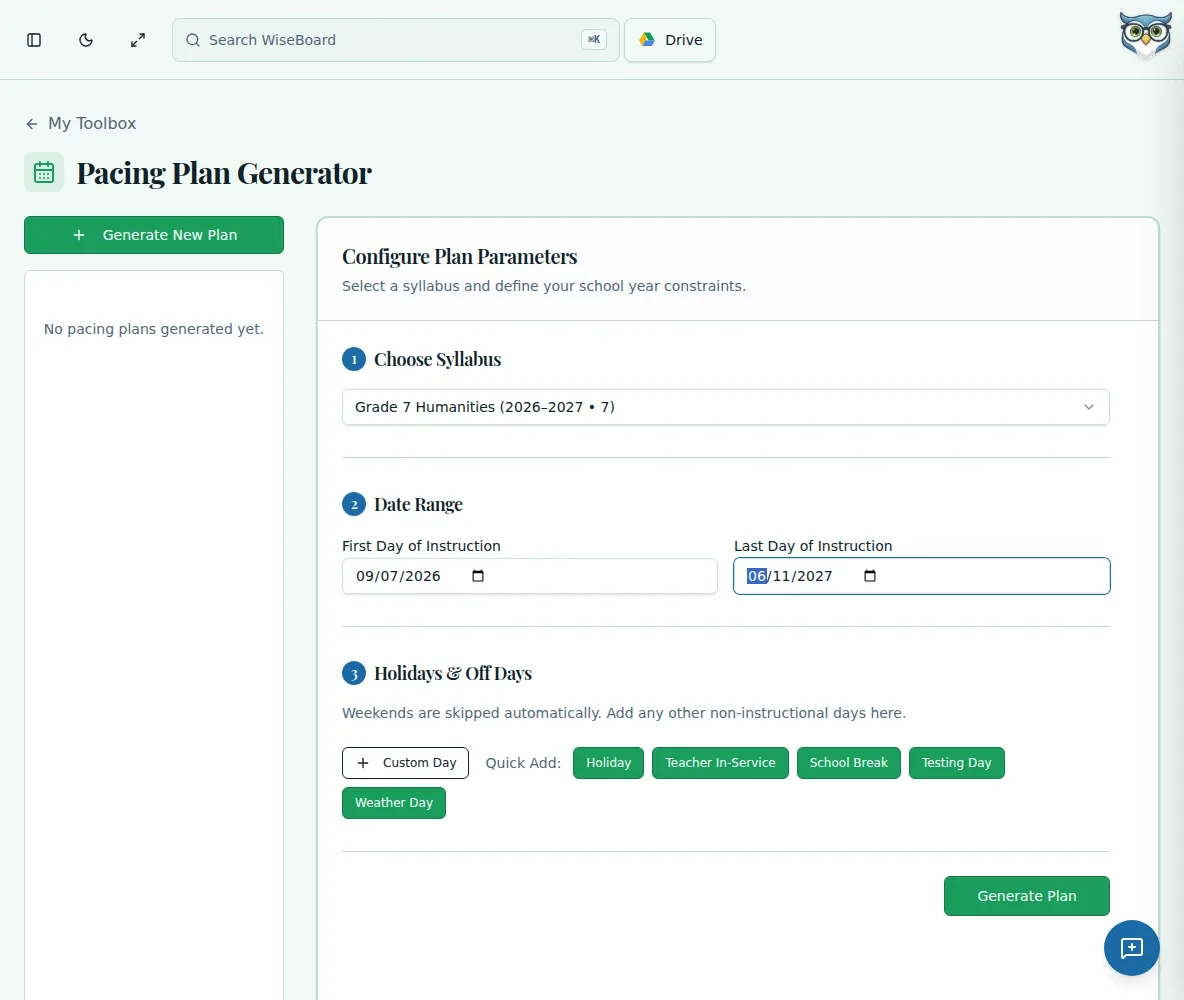
Set first and last instruction dates, teaching days, holidays, and breaks before generating.
Planning tools
Turn a saved syllabus into a dated pacing plan using your instruction window, teaching days, holidays, and breaks. Review the generated schedule, then mark lessons taught only after delivery. Completion records describe teaching, not student mastery.
See the workspace before you sign in.
01 / THE DIFFERENCE
Practical tools that leave the decisions with you.
Set first and last instruction dates, teaching days, holidays, and breaks before generating.
Use a dated plan to see where syllabus lessons fall across the term.
Mark lessons or a week taught after instruction, and print the reviewed plan when useful.
02 / IN PRACTICE
A closer look at how this fits into your day.
Explore the interactive app demoOpen Pacing Plans and select a saved plan or choose Generate New Plan.
Choose a syllabus, instruction dates, teaching days, holidays, and breaks, then generate the schedule.
Check dates, mark only delivered lessons as taught, and print or hide completed lessons as needed.
03 / A CLOSER LOOK
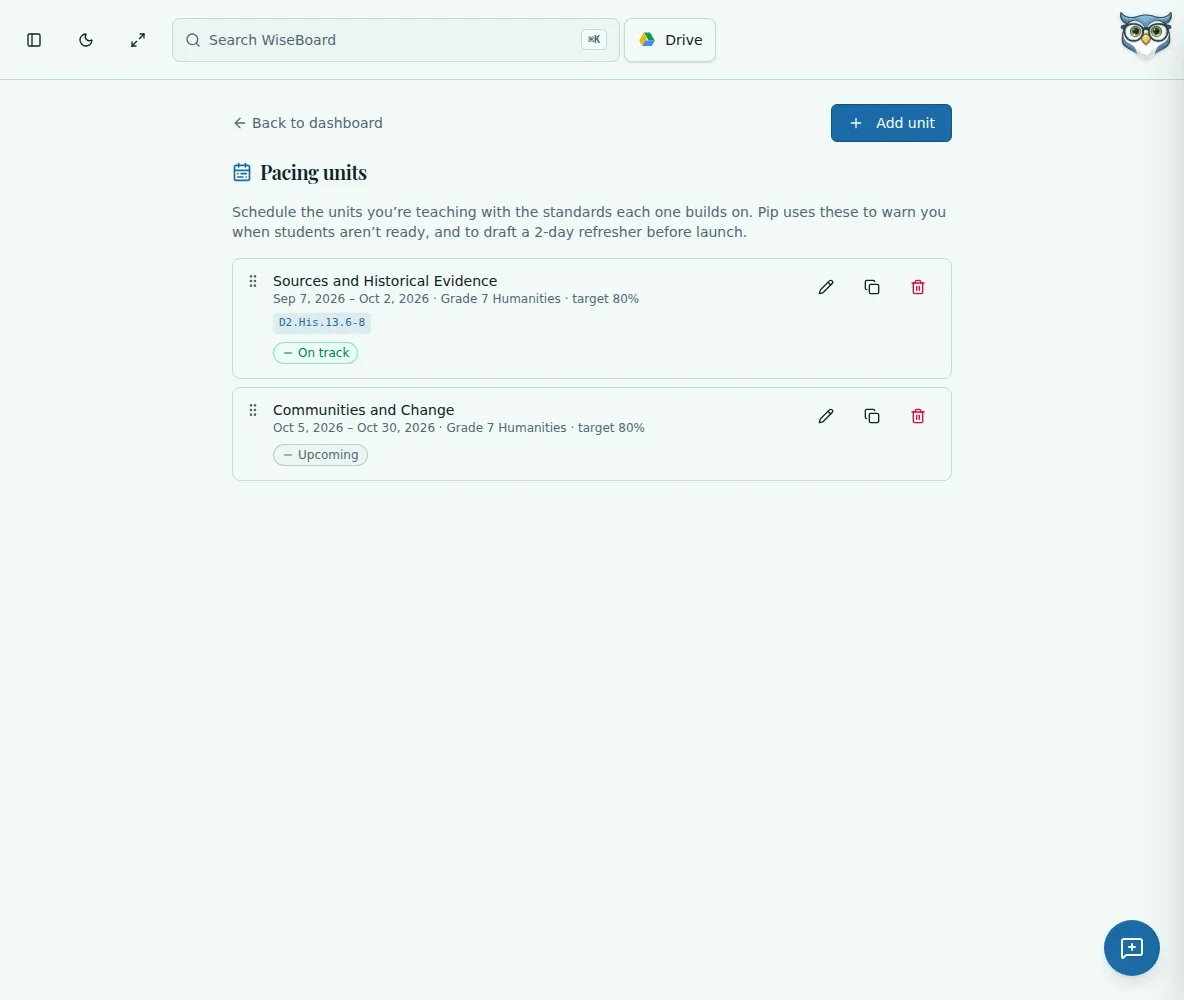
Related workflow view. This is not another screen of the primary feature.
WHAT THIS COULD LOOK LIKE
Select a saved science syllabus, enter the term dates and actual teaching days, and include known breaks. Review the generated sequence before marking any lesson taught; adjust your teaching plan if assemblies or absences change the week.
GOOD TO KNOW
A little more detail before you dive in.
A saved syllabus is required before generating a pacing plan.
No. Completion records describe lesson delivery only.
YOUR WORKSPACE AWAITS
Explore WiseBoard on your own terms. Take a look around, or start your free trial.