 WiseBoard
Collect different kinds of references
Add a note, link or image card to one board.
Teacher organization
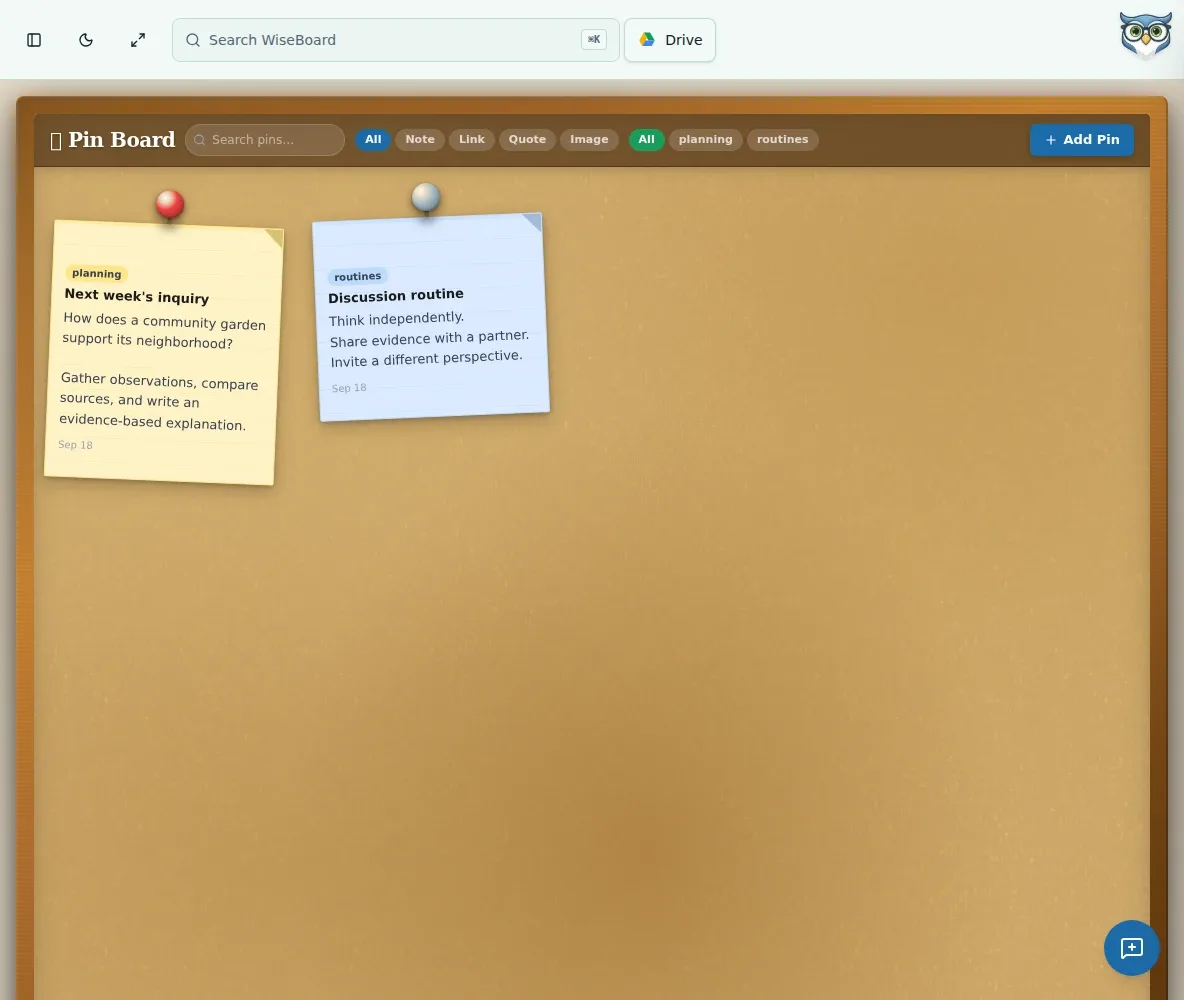
Useful links and planning fragments tend to disappear into browser tabs. Pin Board gives you a visual board for notes, links and images that you can arrange, tag and search.
See the workspace before you sign in.
01 / THE DIFFERENCE
Practical tools that leave the decisions with you.
Add a note, link or image card to one board.
Drag cards into a useful layout and choose a color for visual grouping.
Use optional tags and search to locate a saved reference on the board.
02 / IN PRACTICE
A closer look at how this fits into your day.
Explore the interactive app demoSelect Add Pin and choose Note, Link or Image.
Enter its information, choose a color and optional tag, then pin it.
Drag cards into place and use search or tags when you need a resource.
WHAT THIS COULD LOOK LIKE
Pin a link to a local archive, an image students will analyze and a note with discussion questions. Arrange the cards in lesson order and tag them with the unit name so you can find them while preparing the next class.
GOOD TO KNOW
A little more detail before you dive in.
Yes. Add a note, link or image card to the board.
Use search or tags, and drag cards to arrange the board in a way that suits your planning.
YOUR WORKSPACE AWAITS
Explore WiseBoard on your own terms. Take a look around, or start your free trial.