 WiseBoard
Collect questions during a session
Open the panel within an active Live Teach session when the control is available.
Live lesson participation
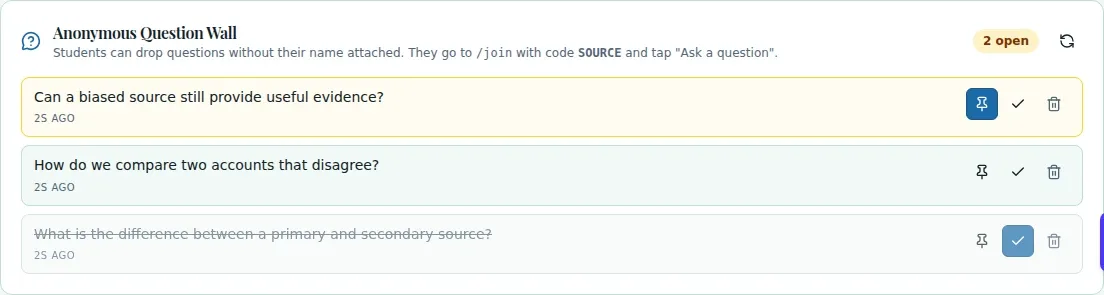
During a lesson, some students may prefer to submit a question rather than raise a hand. Question Wall is an available Live Teach panel where you can review incoming questions and decide which ones to bring into the class discussion.
See the workspace before you sign in.
01 / THE DIFFERENCE
Practical tools that leave the decisions with you.
Open the panel within an active Live Teach session when the control is available.
Pin a selected question to the projector view when you want everyone to discuss it.
Mark questions answered or delete them during the session.
02 / IN PRACTICE
A closer look at how this fits into your day.
Explore the interactive app demoLaunch Live Teach with the correct class and lesson context.
Choose Question Wall in the available session controls.
As questions arrive, pin, mark answered or delete them according to your classroom judgment.
WHAT THIS COULD LOOK LIKE
Invite students to add questions while they read. Scan the wall at a natural stopping point, pin one question for a whole-class discussion, then mark it answered after addressing it.
GOOD TO KNOW
A little more detail before you dive in.
No. Pinned questions appear on the projector view; use the projection controls when you want the class to see a selected question.
No. The display omits author identity, but that should not be expanded into a claim about backend data retention.
YOUR WORKSPACE AWAITS
Explore WiseBoard on your own terms. Take a look around, or start your free trial.