 WiseBoard
Choose your own sections
Import only active sections assigned to the Schoology teacher account you authorize.
Class setup
If your district has enabled the Schoology connection, import students from the sections you teach instead of retyping a roster. Choose the active sections to bring in, review the resulting classes and return to an imported section when you need to refresh it.
See the workspace before you sign in.
01 / THE DIFFERENCE
Practical tools that leave the decisions with you.
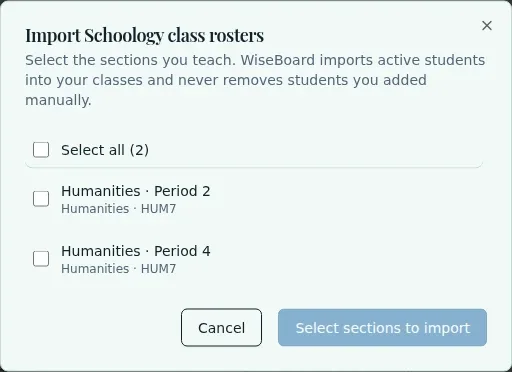
Import only active sections assigned to the Schoology teacher account you authorize.
WiseBoard creates or matches a class for each section you select.
Select an imported section again later to bring the current Schoology roster into review.
02 / IN PRACTICE
A closer look at how this fits into your day.
Explore the interactive app demoOpen Schoology under Integrations. If it is not configured, enter the district-approved app credentials and school domain, if required.
Complete Schoology's secure authorization, then choose Import class rosters.
Choose the active sections you teach, import them, then review the resulting WiseBoard class rosters.
WHAT THIS COULD LOOK LIKE
Authorize the Schoology account tied to your teaching sections, select the current term's active classes and import them. Check each resulting roster before using the class; if the source section changes later, select that imported section again to refresh it.
GOOD TO KNOW
A little more detail before you dive in.
Schoology setup may require an approved app consumer key, consumer secret and school domain. Ask your school or district for the correct configuration.
Confirm the authorized account teaches an active section and that the app has roster access. Do not create a duplicate class to work around a mismatch.
YOUR WORKSPACE AWAITS
Explore WiseBoard on your own terms. Take a look around, or start your free trial.