 WiseBoard
Search in the framework you use
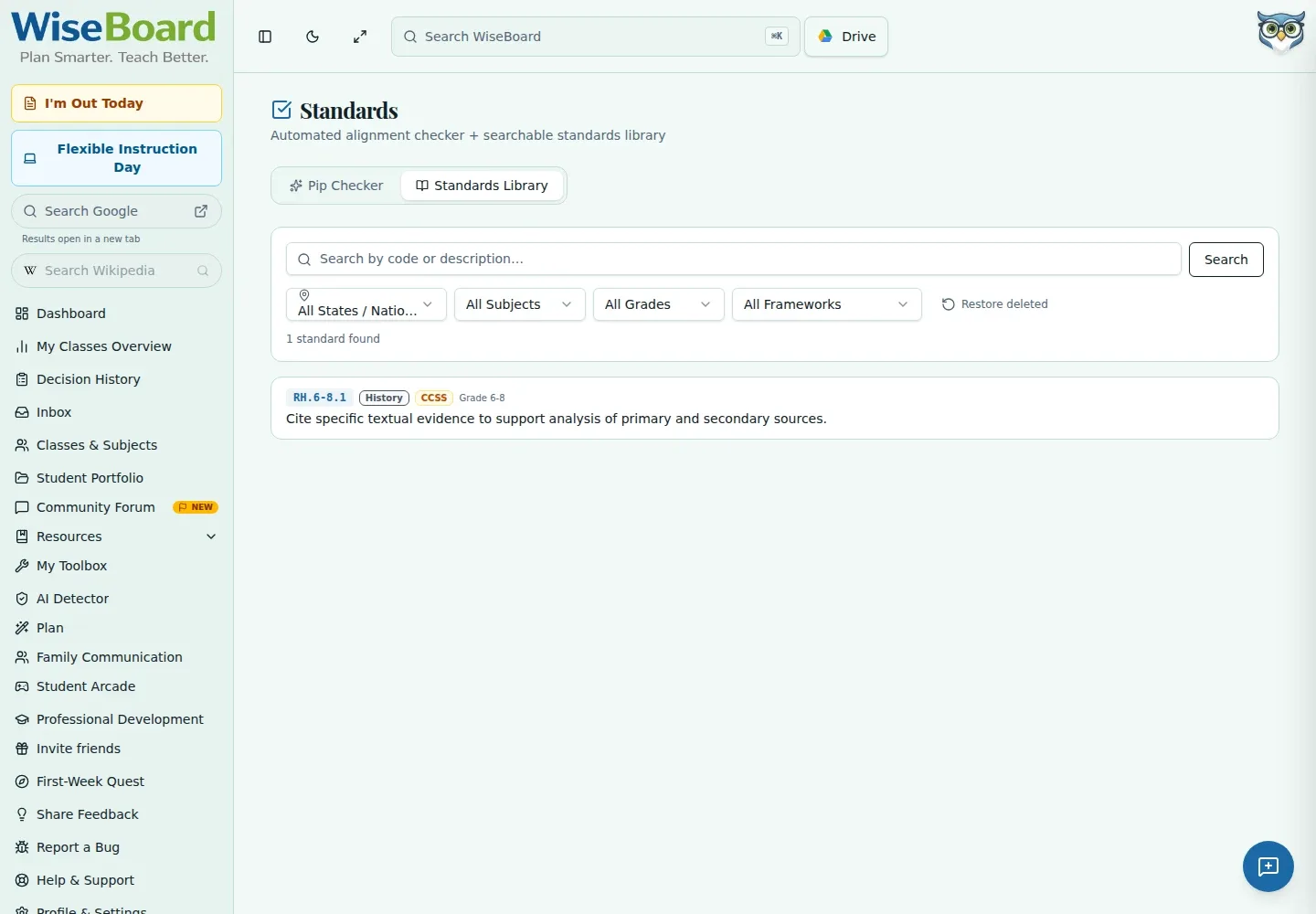
Choose an available framework or state and read its displayed codes and descriptions.
Curriculum alignment
Use the Standards Library to search available or imported frameworks and narrow results by grade, subject, keyword, or standard code. Availability varies by framework; missing state standards are reported rather than silently filled in. My Sets is a separate place to manage custom standards.
See the workspace before you sign in.
01 / THE DIFFERENCE
Practical tools that leave the decisions with you.
Choose an available framework or state and read its displayed codes and descriptions.
Filter by grade and subject, then search by a keyword or code.
Use My Sets for custom standard sets instead of assuming the library edits official frameworks.
02 / IN PRACTICE
A closer look at how this fits into your day.
Explore the interactive app demoGo to Standards and select Library.
Select an available framework or state, then set grade and subject filters.
Search for a code or keyword; use My Sets when you need a custom standard set.
03 / A CLOSER LOOK
Related workflow view. This is not another screen of the primary feature.
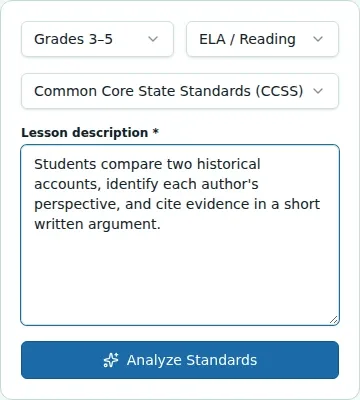
WHAT THIS COULD LOOK LIKE
Select the framework your school uses, filter to the relevant grade and subject, and search the standard code. Read its description before planning; if the framework is missing, use an available source rather than assuming it is included.
GOOD TO KNOW
A little more detail before you dive in.
Not necessarily. Select an available framework or state; missing state frameworks are explicitly reported.
Custom standard sets are managed separately through My Sets.
YOUR WORKSPACE AWAITS
Explore WiseBoard on your own terms. Take a look around, or start your free trial.