 WiseBoard
Make the next step concrete
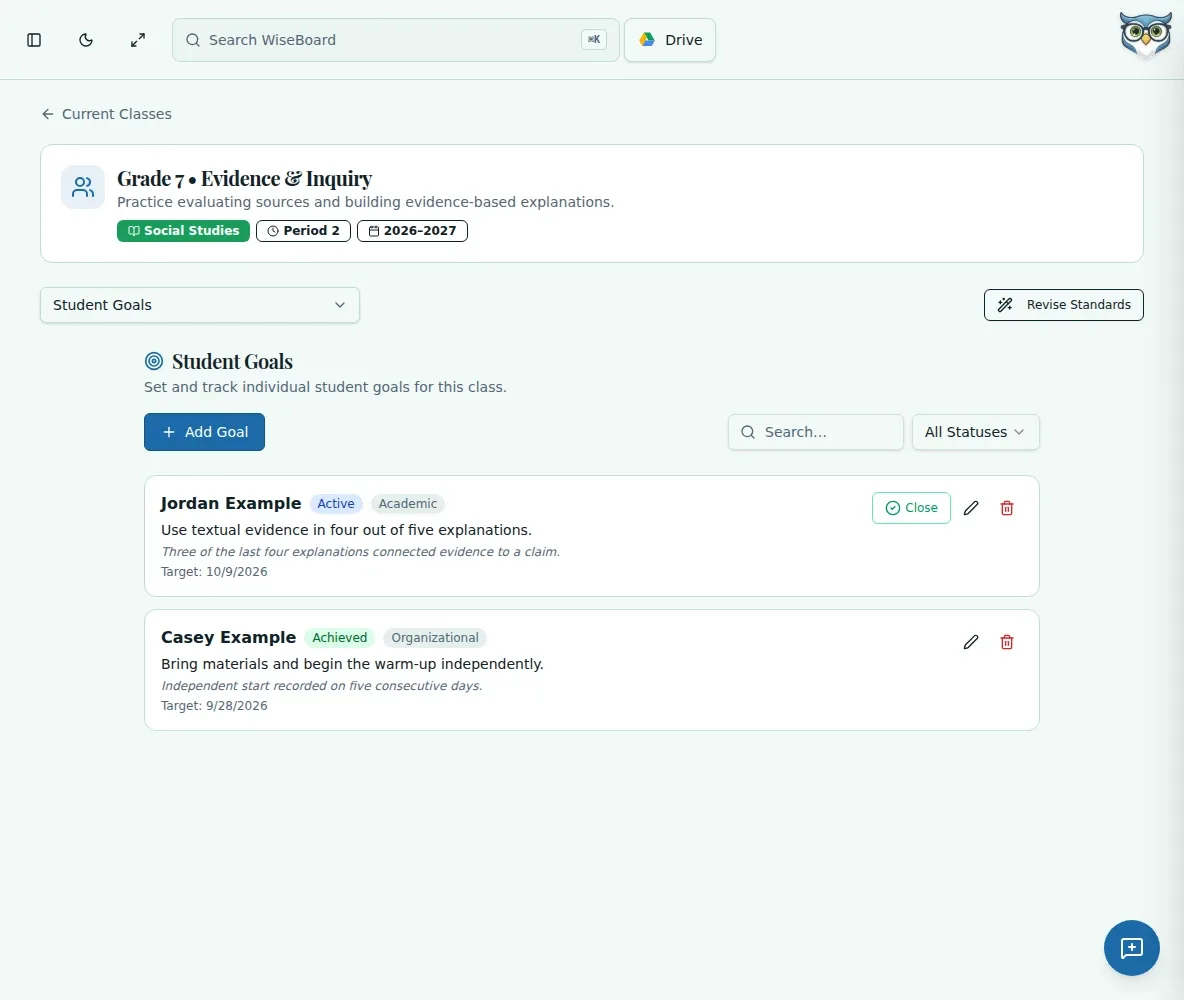
Record goal text, category, optional target date, status and progress notes for an individual student.
Individual progress
When a student is working toward a specific next step, record the goal and the progress you observe. Student Goals keeps teacher-entered goal details, status and notes available for follow-up and conferences.
See the workspace before you sign in.
01 / THE DIFFERENCE
Practical tools that leave the decisions with you.
Record goal text, category, optional target date, status and progress notes for an individual student.
Use search or the status filter to find a goal and review its current notes.
Close an active goal as met, partially met or discontinued, with an optional closing note.
02 / IN PRACTICE
A closer look at how this fits into your day.
Explore the interactive app demoOpen a class from Current Classes and choose Student Goals in its class-section menu.
Choose Add Goal, enter the student and goal details, then save. Use search or the status filter to find it again.
Edit progress notes as needed, or choose Close and record the appropriate closing status and note. Review closed goals under Past Goals.
WHAT THIS COULD LOOK LIKE
Write a specific goal for bringing materials to class, choose an appropriate category and target date, then add a brief progress note during check-ins. Close the goal only after reviewing progress with the student.
GOOD TO KNOW
A little more detail before you dive in.
No. It is a teacher-recorded goal tool. Follow your school's separate IEP documentation procedures.
The available statuses are Active, Achieved, Paused and Dropped. Closing an active goal lets you record Goal met, Partially met or Discontinued.
YOUR WORKSPACE AWAITS
Explore WiseBoard on your own terms. Take a look around, or start your free trial.