 WiseBoard
Record the task while it is fresh
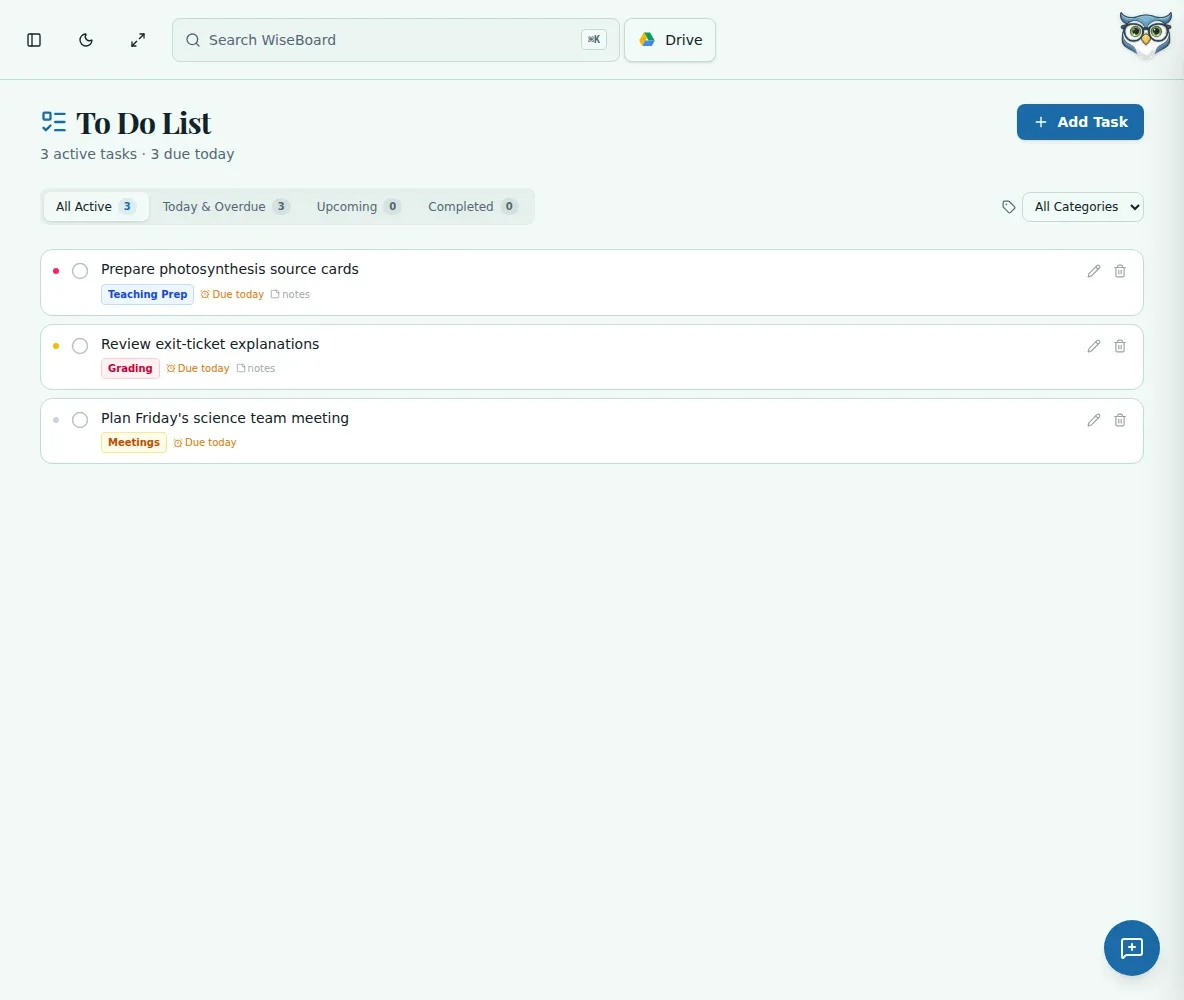
Add a task description, due date and priority instead of relying on memory.
Teacher organization
A permission slip to check, a lesson to prep and a meeting follow-up can all compete for attention. Capture each task with a date, priority and category, then return to the list when you plan your day.
See the workspace before you sign in.
01 / THE DIFFERENCE
Practical tools that leave the decisions with you.
Add a task description, due date and priority instead of relying on memory.
Choose categories such as Teaching Prep, Grading, Admin, Meetings, Curriculum, Personal or Other.
Check off completed tasks and review them in the completed view.
02 / IN PRACTICE
A closer look at how this fits into your day.
Explore the interactive app demoChoose Add Task and enter its description, due date and priority.
Select the category that best describes the work.
Prioritize at the start of the day and check off tasks when done.
WHAT THIS COULD LOOK LIKE
Add a high-priority Teaching Prep task to adapt a lab handout, set a due date before class and check it off after reviewing the materials. Keep a separate follow-up in the list for ordering supplies.
GOOD TO KNOW
A little more detail before you dive in.
Each task can include a due date and priority. Use the list controls shown in the page to review your work.
Yes. Check tasks off and review them in the completed view.
YOUR WORKSPACE AWAITS
Explore WiseBoard on your own terms. Take a look around, or start your free trial.